



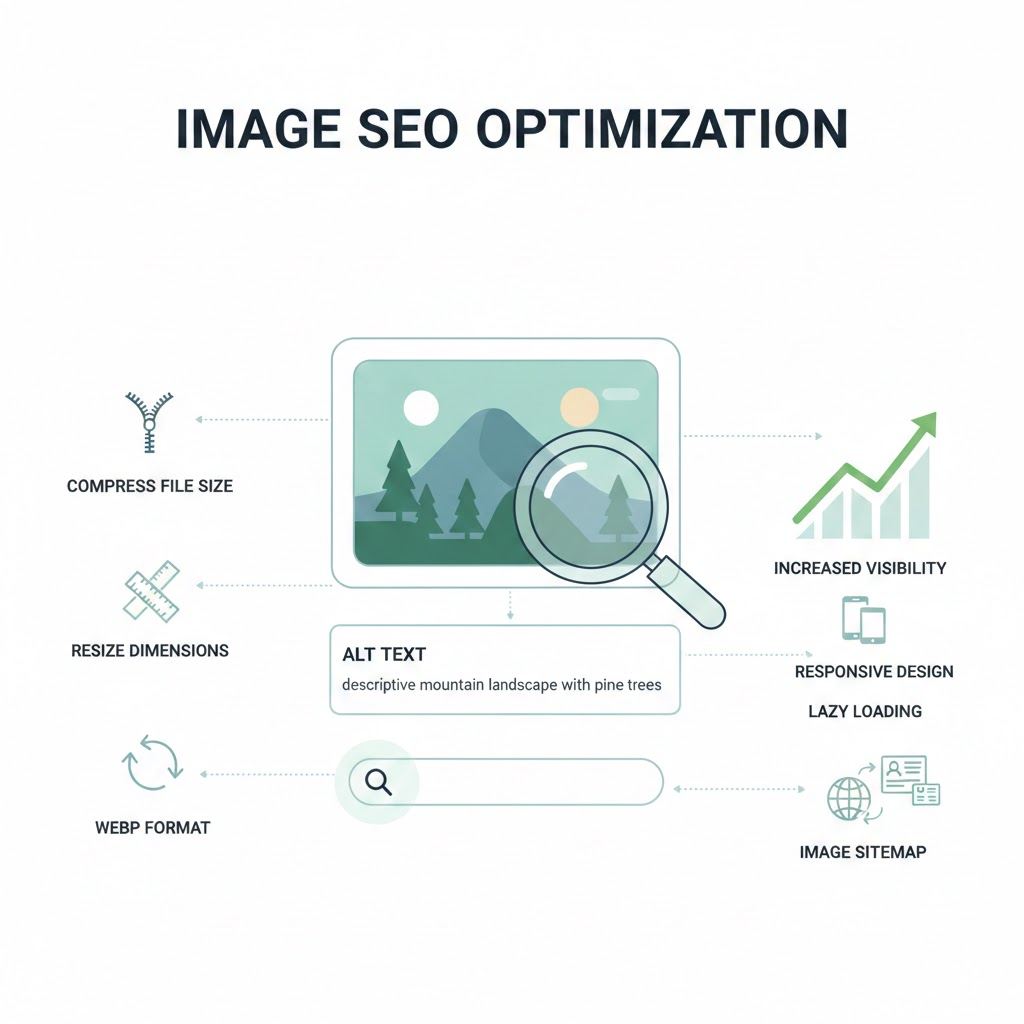
How to Optimize Images for SEO
Introduction
If you’ve ever wondered why some websites load lightning-fast while others drag endlessly, or why certain images appear at the top of Google Images while others don’t show up at all, the answer often comes down to one thing image SEO. It’s a skill every digital creator should master, especially students preparing for careers in web design, digital marketing, blogging, or e-commerce.
Image optimization isn’t just about shrinking file sizes or adding alt text; it’s a combination of technical best practices, accessibility improvements, performance tuning, and strategic metadata enhancement. In the 2024–2025 search landscape where Google emphasizes user experience, page speed, helpful content, and accuracy image SEO has become more important than ever.
In this guide, we’ll break down image optimization in a way that’s incredibly easy to understand, even if you’re new to SEO. You’ll learn the exact steps professionals use, real examples from digital marketing practice, and actionable strategies you can implement right now whether you're optimizing images for a class project, a personal blog, or a business website.
Why Image SEO Matters (Especially for Students)
Before diving into the “how,” it helps to understand the “why.”
Here are a few reasons image optimization is essential:
-
Faster websites rank higher. Google Core Web Vitals prioritize speed and responsiveness.
-
Images drive traffic. Google Images accounts for about 20–25% of all web searches.
-
Accessibility matters. Alt text is required for screen readers—and Google values accessible content.
-
Optimized visuals improve user engagement. Faster image loads = improved time on site and lower bounce rates.
-
Professional skill-building. Students entering tech, marketing, or design will almost certainly need this skill.
As John Mueller from Google explains, “Image optimization improves not just ranking but overall site quality and user experience.”
How to Optimize Images for SEO (Step-by-Step Guide)
H2: Choose the Right Image Format
Different formats serve different purposes. Choosing the right one can drastically improve performance.
H3: WebP The Modern Standard
-
Offers lossless and lossy compression
-
Reduces file size significantly without major quality loss
-
Recommended for most modern websites
Google Lighthouse specifically rewards WebP usage with higher performance scores.
H3: PNG Best for Graphics
Use PNG when:
-
You need transparent backgrounds
-
You’re displaying illustrations or logos
H3: JPEG Ideal for Photos
JPEG is still useful for:
-
High-resolution photos
-
Portfolio galleries
High-quality JPEGs can be optimized without visible quality loss through tools like TinyJPG.
Actionable Tip:
Use WebP for general use, PNG for graphics, and JPEG for detailed photography. When in doubt—choose WebP.
H2: Compress Images Without Losing Quality
Large images slow down pages dramatically, affecting both user experience and ranking.
Google recommends keeping images under 150–200 KB when possible.
Effective Image Compression Tools
-
TinyPNG
-
Squoosh (by Google Chrome Labs)
-
ImageOptim (Mac)
-
ShortPixel (WordPress plugin)
Real-World Example
A student portfolio website improved its load speed from 3.8s → 1.6s simply by compressing image sizes by 60%.
Actionable Tip:
Always compress images before uploading to your site—CMS plugins can help, but starting with optimized files gives the best long-term performance.
H2: Use Descriptive, Keyword-Rich File Names
Google reads filenames as clues to what the image is about.
Bad Example
Good Example
This improves:
-
Semantic relevance
-
Google Image ranking
-
Accessibility accuracy
Actionable Tip:
Keep filenames in lowercase, use hyphens, and include the main topic naturally without stuffing.
H2: Write Effective Alt Text for Accessibility & SEO
Alt text helps:
-
Search engines understand your images
-
Screen readers narrate descriptions for visually impaired users
-
Google evaluate “image intent” in context with surrounding content
How to Write Good Alt Text
-
Describe the image clearly
-
Keep it natural and concise
-
Include a keyword only if it fits contextually
Examples
Bad Alt Text:
“SEO keyword image optimization tips best techniques”
Good Alt Text:
“A student optimizing images on a laptop for SEO using a compression tool.”
Actionable Tip:
Never leave alt text blank unless the image is purely decorative.
H2: Add Captions When Relevant
According to usability research from Nielsen Norman Group, users read captions 300% more often than regular text.
Use captions when:
-
The image needs context
-
You're showing examples, data, or screenshots
Avoid captions when:
-
The image is decorative
-
The text would be repetitive
H2: Use Responsive Images (SRCSET) for Mobile Optimization
More than 60% of web searches happen on mobile devices.
Google’s Core Web Vitals strongly reward responsive images.
This tells browsers to load different image sizes based on screen width.
Actionable Tip:
Create 2–4 size variants for important images.
H2: Implement Lazy Loading
Lazy loading delays images from loading until a user scrolls near them.
It's crucial for pages with many images (blogs, ecommerce, galleries).
HTML Example
Actionable Tip:
Enable lazy loading globally through modern CMS platforms or HTML attributes.
H2: Add Structured Data for Visual Elements
SEO students often miss this advanced but powerful step.
Image structured data helps Google understand:
-
Featured images
-
Product photos
-
Recipe images
-
Video thumbnails
Use ImageObject schema:
Google uses this for:
-
Rich results
-
Knowledge panels
-
Enhanced image rankings
H2: Use a CDN to Deliver Images Faster
A Content Delivery Network (CDN) stores images across global servers.
Benefits include:
-
Faster load speeds for international audiences
-
Reduced server stress
-
More consistent Core Web Vitals scores
Popular options:
-
Cloudflare
-
BunnyCDN
-
Akamai
-
Amazon CloudFront
Actionable Tip:
Students working on WordPress can use Cloudflare or Jetpack Image CDN for free.
H2: Optimize Image Placement & Context
Google doesn’t just look at the image—it analyzes everything around it.
Best Practices
-
Place images near relevant content
-
Use supporting text that matches image intent
-
Include relevant headings near visuals
Example
If you’re writing about "how to compress images," place a screenshot of the compression tool directly in that section—not at the bottom of the page.
H2: Use Consistent Aspect Ratios
Consistency improves both aesthetics and user experience.
Irregular sizes can shift layouts, harming Cumulative Layout Shift (CLS) scores.
Google recommends:
-
Set explicit width & height attributes
-
Use consistent aspect ratios (16:9, 4:3, 1:1)
Example:
Conclusion
Image SEO is no longer optional—it's a major contributor to visibility, ranking, and user experience. As a student entering the digital world, mastering these techniques gives you a competitive edge. You’ll build faster websites, create more accessible content, and make your visuals discoverable across Google Search and Google Images.
By choosing the right formats, writing smarter alt text, using responsive designs, compressing files strategically, and adding structured data, you’re setting your site up for long-term SEO success. And as Google's algorithms continue to prioritize helpful content and speed, these skills become even more valuable.
Whether you’re optimizing images for class assignments, a startup project, or your personal portfolio—these best practices will help you build content that users and search engines love. Remember: every optimized image is one step closer to a cleaner, faster, more accessible internet.
FAQs (People Also Ask)
1. What is the best image format for SEO?
WebP is the best all-around format today because it offers high quality with significantly smaller file sizes.
2. How much should I compress images for SEO?
Aim for 150–200 KB or less when possible, without sacrificing too much quality.
3. Does alt text help SEO?
Yes. Alt text improves accessibility, helps Google understand images, and can influence image search rankings.
4. Do captions affect ranking?
Indirectly, yes. Captions improve user engagement, which may improve SEO signals.
5. Should I use lazy loading?
Absolutely. Lazy loading improves page speed and Core Web Vitals, especially for image-heavy pages.
Tags :
No Tags

0 Comments