



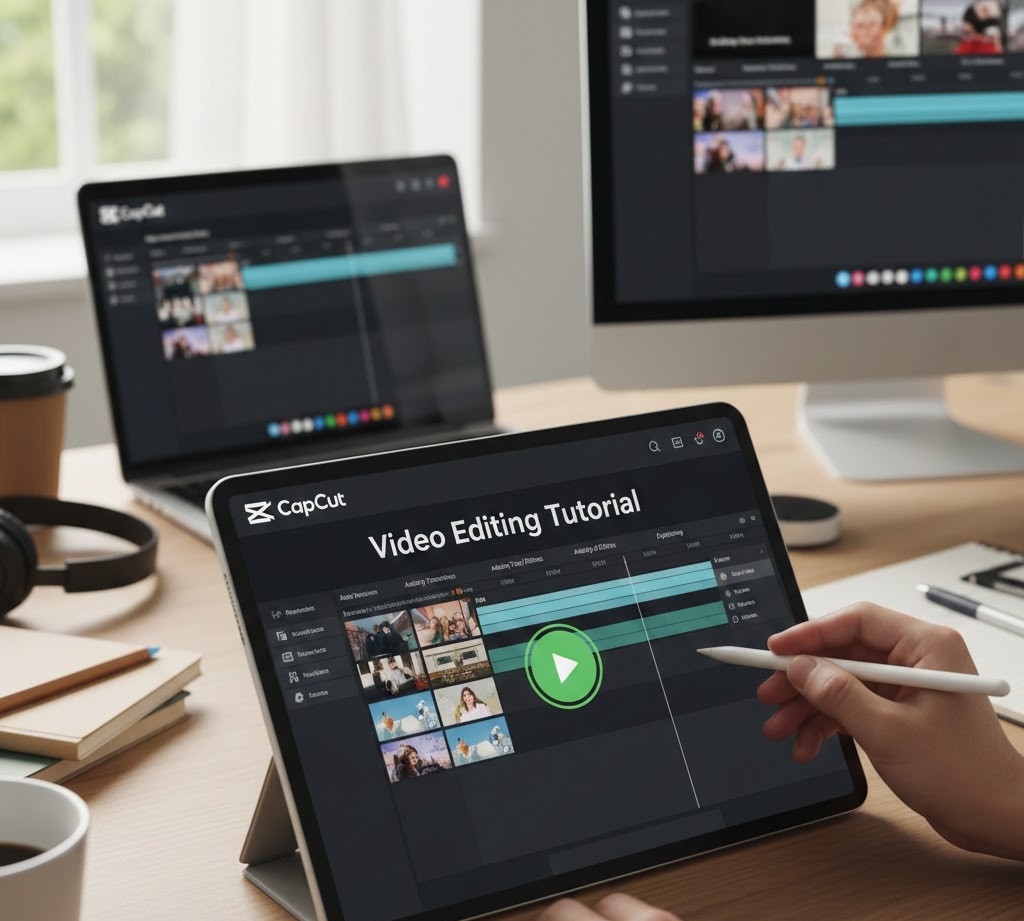
CapCut Video Editing Tutorial
Introduction
Have you ever watched a short video on Instagram, TikTok, or YouTube and thought, “I wish I could make something like that”? Maybe the transitions looked smooth, the captions were perfectly timed, or the music matched the mood so well that the video felt cinematic. The good news is that you no longer need expensive software or years of experience to create high-quality videos. With CapCut, a free and beginner-friendly video editing app, anyone can start editing like a pro.
Video content has become one of the most powerful communication tools today. Students use it for presentations, creators use it to build personal brands, and small businesses rely on it for marketing. Learning CapCut is not just about making fun videos; it’s a practical digital skill that opens doors to freelancing, content creation, and even careers in media.
In this tutorial, you’ll learn what CapCut is, how it works, how to use its core features, and how to edit your first professional-looking video step by step. By the end, you’ll feel confident enough to experiment, create, and share your own content.
What CapCut Really Is and Why It’s So Popular
CapCut is a free video editing application developed by ByteDance, the same company behind TikTok. But CapCut isn’t just “a TikTok editing app.” It has grown into a powerful, standalone editing tool used by students, creators, educators, marketers, and even small agencies.
What makes CapCut especially appealing to beginners is its balance between simplicity and power. The interface is clean and intuitive, but the features go deep enough to support serious editing work.
Some reasons CapCut has become so popular include:
-
It’s free to use with no watermark on exported videos
-
It works on mobile (Android and iOS) and desktop (Windows and Mac)
-
It offers ready-made templates for quick edits
-
It includes advanced features like keyframes, chroma key, and background removal
-
It has a massive library of effects, transitions, and music
Unlike traditional editing software that can feel intimidating, CapCut is designed to help you learn by doing. You can start with simple cuts and gradually explore more advanced tools as your confidence grows.
How Video Editing Works (In Simple Terms)
Before diving into features, it helps to understand how video editing actually works. Think of editing as storytelling with clips.
You begin with raw material: video clips, photos, music, and voice recordings. Your job as an editor is to:
-
Choose the best moments
-
Arrange them in a meaningful order
-
Remove mistakes and unnecessary parts
-
Add music, text, and effects to enhance the message
-
Adjust timing so everything feels smooth
CapCut organizes everything on a timeline. The timeline is where your video takes shape. Each clip you add becomes a block on this timeline. You can move these blocks, trim them, split them, or layer them on top of each other.
Once you understand the timeline, you understand the heart of video editing. Everything else in CapCut builds on this foundation.
Getting Started with CapCut
Downloading and Setting Up CapCut
CapCut is available on:
-
Mobile devices (Android and iPhone)
-
Desktop computers (Windows and Mac)
-
Web browser (limited features, but improving)
For beginners, mobile is often the easiest place to start. The interface is touch-friendly and intuitive. Desktop users get more screen space and slightly more control, which can be useful for longer projects.
After installing CapCut, open the app and tap “New Project.” You’ll be asked to select media from your gallery or computer. Choose a few short clips to practice with.
Understanding the Interface
At first glance, CapCut might look like a lot, but it’s actually very logical. The main areas you’ll work with are:
-
Preview window: where you watch your video
-
Timeline: where your clips are arranged
-
Toolbar: where editing tools like split, text, audio, and effects live
-
Media library: where your imported videos, photos, and sounds appear
Spend a few minutes tapping around and exploring. You won’t break anything. Familiarity comes quickly once you start using the tools.
Core CapCut Features Every Beginner Should Learn
Trimming and Splitting Clips
The first skill every editor must master is cutting footage.
Trimming means shortening a clip by dragging its edges.
Splitting means cutting a clip into two parts at a specific point.
These two actions help you:
-
Remove mistakes
-
Cut out awkward pauses
-
Keep only the most interesting moments
-
Control the pacing of your video
Most professional-looking videos are simply the result of good trimming. Clean cuts make everything else look better.
Adding and Editing Text
Text is one of CapCut’s strongest features. You can use it for:
-
Titles and headings
-
Subtitles and captions
-
Social media hooks
-
Call-to-action messages
CapCut allows you to customize text in many ways:
-
Fonts and styles
-
Colors and backgrounds
-
Animations (how text enters and exits the screen)
-
Position and size
A beginner tip: don’t overuse fancy animations. Simple, clean text often looks more professional and easier to read.
Using Transitions
Transitions are the visual effects that appear between two clips. They can make your video feel smooth, dynamic, or cinematic.
CapCut includes dozens of transitions such as:
-
Fade
-
Slide
-
Zoom
-
Blur
-
Glitch
-
Light effects
Transitions are powerful, but beginners often make the mistake of using too many. A good rule of thumb: use transitions intentionally, not everywhere. Sometimes a simple cut is more effective than a flashy effect.
Working with Audio
Great video editing is not just visual. Audio quality plays a huge role in how professional your content feels.
CapCut gives you several audio options:
-
Add background music from its library
-
Import your own music
-
Record voiceovers directly in the app
-
Extract audio from videos
-
Adjust volume levels
You can also fade audio in and out, which helps create smoother transitions between scenes. If your video feels “off,” the problem is often audio, not visuals.
Filters and Color Adjustment
Filters can change the mood of your video instantly. CapCut offers filters for different styles, such as warm, cinematic, vintage, or dramatic.
Beyond filters, you can manually adjust:
-
Brightness
-
Contrast
-
Saturation
-
Sharpness
-
Temperature
Learning basic color adjustment helps your videos look more consistent and polished. Even small tweaks can make a big difference.
Moving Beyond Basics: Intermediate CapCut Tools
Keyframes for Motion
Keyframes allow you to create movement. With keyframes, you can animate:
-
Zoom in and out
-
Move objects across the screen
-
Rotate elements
-
Create smooth transitions between positions
For example, instead of a static photo, you can slowly zoom in to create a cinematic effect. This technique alone can dramatically improve the quality of your edits.
Chroma Key (Green Screen)
Chroma key lets you remove a background from a video, usually filmed against a green screen. CapCut makes this surprisingly easy.
You can use it to:
-
Place yourself in different environments
-
Create educational videos with custom backgrounds
-
Make creative or funny content
Even without a professional green screen, good lighting and a plain background can produce impressive results.
Background Removal
CapCut also includes automatic background removal for certain clips, especially on mobile. This means you can cut out a person from a video and place them over another background without complex tools.
This feature is popular for:
-
Talking head videos
-
Reels and TikToks
-
Educational content
-
Promotional videos
Speed Controls
Speed tools let you slow down or speed up footage. CapCut offers both normal speed adjustment and curve speed, which allows more advanced control.
You might use speed effects to:
-
Create dramatic slow motion
-
Make time-lapse style videos
-
Add energy to transitions
-
Emphasize specific moments
Used thoughtfully, speed control adds emotion and rhythm to your storytelling.
How CapCut Fits into the Bigger Content Creation World
Learning CapCut is not an isolated skill. It connects directly to many modern opportunities.
If you’re a student, you can use CapCut for:
-
Class presentations
-
Project videos
-
Educational content
-
Personal portfolios
If you’re interested in online work, CapCut can support:
-
Social media management
-
Freelance video editing
-
YouTube content creation
-
Short-form video marketing
Video is now central to digital communication. Brands, influencers, educators, and entrepreneurs all need editors. CapCut provides a practical entry point into this growing ecosystem.
Real-World Examples of What You Can Create with CapCut
Consider a student who starts using CapCut just to edit fun videos. Over time, they learn how to:
-
Add clean subtitles
-
Sync edits with music beats
-
Use smooth transitions
-
Create engaging hooks
Soon, their videos start getting more attention on social platforms. Friends ask for help editing their content. Eventually, the student begins offering editing services online. What started as a simple app becomes a marketable skill.
Another example is a small business owner using CapCut to create product videos. Instead of paying for expensive production, they learn to shoot with their phone and edit with CapCut. Their content looks professional enough to attract customers and build trust.
These are not rare stories. They happen every day because accessible tools like CapCut lower the barrier to entry.
Common CapCut Mistakes Beginners Make
Overusing Effects
CapCut’s effects library is fun, but too many effects can make a video look chaotic and unprofessional. Simplicity often wins.
Ignoring Audio Quality
Many beginners focus only on visuals. Poor audio, uneven volume, or distracting background noise can ruin an otherwise good video.
No Clear Story
A video without structure feels boring, even if it looks good. Always think about the beginning, middle, and end of your video.
Not Saving Versions
Experimentation is great, but always save copies of important projects. Sometimes changes can’t be undone easily.
Practical Skills Beginners Should Focus on First
If you’re just starting out, don’t try to learn everything at once. Focus on these core skills:
-
Clean trimming and pacing
-
Simple, readable text
-
Basic transitions
-
Balanced audio levels
-
Consistent visual style
Once these become natural, move on to advanced features like keyframes and chroma key. Strong fundamentals always matter more than flashy tricks.
How CapCut Skills Can Lead to Opportunities
Video editing is no longer limited to professionals in studios. With tools like CapCut, opportunities are more accessible than ever.
You can explore paths such as:
-
Freelance video editor for social media creators
-
Content creator on platforms like TikTok, YouTube, and Instagram
-
Video assistant for online businesses
-
Digital marketing roles that require video skills
Many clients don’t care which software you use. They care about results. If your CapCut-edited videos look good, meet deadlines, and tell strong stories, your skills will be valued.
FAQs About CapCut Video Editing
Is CapCut really free to use?
Yes. CapCut is free to download and use, and it does not add watermarks to exported videos. Some optional assets may require internet access, but core features are fully available at no cost.
Is CapCut good enough for professional work?
For many types of projects, yes. While it may not replace high-end studio software for complex film production, CapCut is more than capable for social media, marketing videos, educational content, and freelance editing.
Can I use CapCut on my computer instead of my phone?
Yes. CapCut offers desktop versions for both Windows and Mac. These versions provide more workspace and are suitable for longer or more detailed projects.
How long does it take to learn CapCut?
You can learn the basics in a few hours. With consistent practice over a few weeks, most beginners become confident editors. Mastery comes with time and real projects.
Do I need expensive equipment to use CapCut?
No. A smartphone with a decent camera and good lighting is enough to start. Skills matter more than gear when you’re learning.
Conclusion
CapCut has changed the way beginners approach video editing. What once required complex software and steep learning curves is now accessible to anyone with a phone or laptop. By understanding the basics of trimming, audio, text, and storytelling, you can quickly move from simple edits to professional-looking videos.
The real value of learning CapCut goes beyond the app itself. You’re developing creative thinking, technical confidence, and communication skills that apply to many areas of life and work. Whether you want to create content for fun, build a personal brand, support your studies, or explore income opportunities, video editing is a powerful skill to have.
Start small. Practice consistently. Experiment without fear. Every great editor began as a beginner with their first simple project. With CapCut and the knowledge you now have, you’re already on the right path.
Tags :
No Tags

0 Comments